







📑 Table of Contents
▼- What is n8n?
- Requirements
- Step 1: Buy Cloud Hosting
- Step 2: Create a Subdomain
- Step 3: Enable SSL for Your Subdomain
- Step 4: Set Up Node.js Application
- Step 5: Install n8n Using Terminal
- Step 6: Configure Application Settings
- Step 7: Set Environment Variables
- Step 8: Start the Application
- Troubleshooting Common Issues
- Maintenance and Updates
- Limitations on Cloud Hosting
- Security Best Practices
Install n8n on cPanel
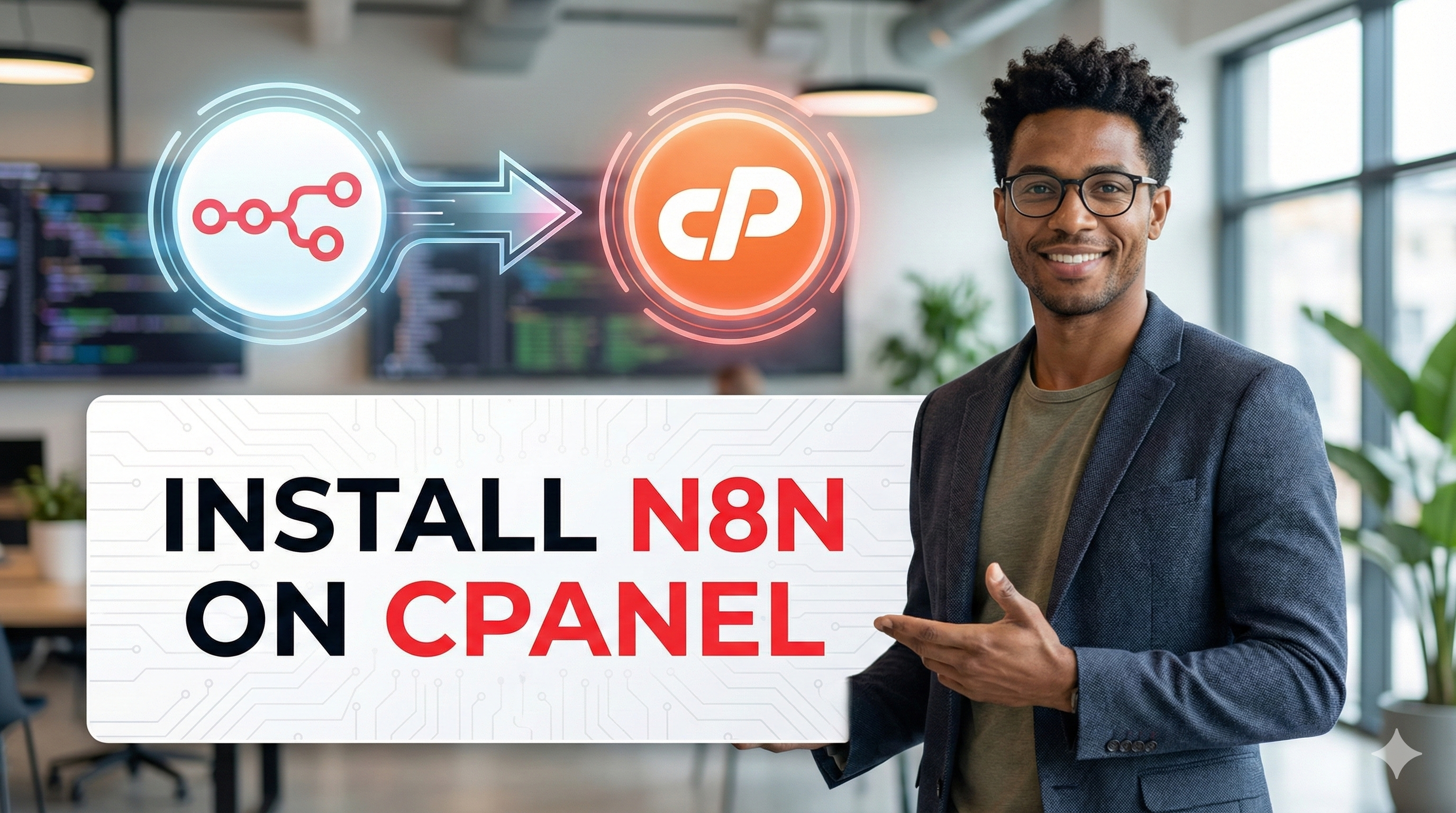
If you are looking to automate workflows and supercharge your productivity, n8n is a fantastic open-source automation tool you should try. This comprehensive tutorial will walk you through installing n8n on your shared cPanel hosting account and getting it running smoothly with SSL support using a dedicated subdomain.
What is n8n?
n8n is an advanced workflow automation tool that lets you visually build complex workflows by integrating hundreds of apps and APIs without writing code. It's a self-hosted alternative to Zapier that gives you full control over your data and workflows.
Requirements
Before you start, ensure you have:
- cPanel Cloud Hosting account with Node.js support (minimum Node.js 22.14.0)
- Access to Terminal (Shell) via cPanel
- AutoSSL or valid SSL certificates enabled
- Basic knowledge of cPanel interface
Step 1: Buy Cloud Hosting With Node.js support (minimum Node.js 22.14.0)
🚀 Get Started with Cloud Hosting
To host n8n successfully, you need a reliable cloud hosting plan with Node.js support. Creators Choice Host offers affordable cloud hosting plans perfect for running n8n and other Node.js applications.
Buy Cloud Hosting Now →Before installing n8n, you'll need a cloud hosting account. Here's how to get started:
- Visit Creators Choice Host Cloud Hosting
- Choose a suitable plan - We recommend at least the Basic plan for n8n
- Select your billing cycle (monthly, quarterly, or yearly)
- Add to cart and proceed to checkout
- Complete registration - Fill in your details and create an account
- Choose payment method - Pay using UPI, Credit/Debit Card, or Net Banking
- Complete payment and wait for account activation (usually instant)
- Check your email for cPanel login credentials
Choose a longer billing cycle (yearly) to save money and get the best value for your cloud hosting plan. All our plans include Node.js support required for n8n.
Step 2: Create a Subdomain
We'll set up a dedicated subdomain for n8n, e.g., n8n.yourdomain.com to avoid conflicts with your main website.
- Log in to your cPanel dashboard using credentials received via email
- Navigate to Domains → Subdomains
- Enter
n8nas the subdomain - Select your main domain
- Document root will automatically populate – leave it as is
- Click Create
- Wait 10-15 minutes for DNS propagation
Step 3: Enable SSL for Your Subdomain
To secure your n8n instance:
- Go to Security → SSL/TLS Status in cPanel
- Find and select your new subdomain
n8n.yourdomain.com - Click Run AutoSSL
- Wait a few minutes for SSL to be issued
Step 4: Set Up Node.js Application
- Navigate to Software → Setup Node.js App in cPanel
- Click Create Application
- Choose Node.js version 22.14.0 or above
- Set Application mode to Development (change later to Production)
- Application root set to your subdomain document root (e.g.,
n8n) - Application URL should show your subdomain
- Startup file defaults to
app.js– we'll change this - Click Create
- Copy the environment activation command shown
Step 5: Install n8n Using Terminal
- Open Terminal from cPanel
- Paste the environment activation command copied in the previous step
- Confirm you are inside the application directory
- Initialize the project:
npm init -y
- Install n8n:
npm install n8n
⚠️ Note: It may take several minutes. Retry if it times out
- Confirm:
node_modules/n8n/bin/n8nexists
Step 6: Configure Application Settings
- Return to Node.js app settings
- Change Startup file to:
node_modules/n8n/bin/n8n - Set Application mode to Production
Step 7: Set Environment Variables
Add these critical variables in your Node.js application settings:
| Variable Name | Value | Description |
|---|---|---|
| N8N_BASIC_AUTH_ACTIVE | true | Enable basic authentication |
| N8N_BASIC_AUTH_USER | [your_username] | Your admin username |
| N8N_BASIC_AUTH_PASSWORD | [your_password] | Your admin password |
| N8N_HOST | 0.0.0.0 | Listen on all interfaces |
| N8N_PORT | 5678 | Application port |
| N8N_PROTOCOL | https | Force HTTPS protocol |
| N8N_PUSH_BACKEND | websocket | WebSocket backend |
| VUE_APP_URL_BASE_API | https://n8n.yourdomain.com/ | Base API URL |
| WEBHOOK_URL | https://n8n.yourdomain.com | Webhook URL |
| NODE_OPTIONS | --max-old-space-size=512 | Memory limit |
| EXECUTIONS_DATA_SAVE_ON_ERROR | none | Don't save error executions |
| EXECUTIONS_DATA_SAVE_ON_SUCCESS | none | Don't save success executions |
Step 8: Start the Application
- Click Restart or Start App in Node.js App
- Wait 2-3 minutes for it to fully start
- Access your instance at:
https://n8n.yourdomain.com - You should see the login prompt. Use the credentials defined in environment variables.
Troubleshooting Common Issues
503 Service Unavailable Errors
- Ensure the app status is running
- Verify the startup file is exactly
node_modules/n8n/bin/n8n - Check all environment variables are correctly set
SSL Certificate Errors
- Confirm AutoSSL is running and complete
- Wait for DNS propagation (up to 24 hours)
- Test DNS resolution using online tools
Installation Timeouts
- Retry
npm install n8nmultiple times - Use the environment activation command before each retry
- Try during off-peak hours for better performance
Node.js Version Warnings
- Use Node.js 22.14.0 or above for best compatibility
- Ignore EBADENGINE warnings – n8n will still function
Maintenance and Updates
To keep your n8n installation updated:
- Access terminal with Node environment active
- Run update command:
npm update n8n
- Restart your Node.js application in cPanel
Limitations on Cloud Hosting
Be aware of these Cloud Hosting constraints:
- Memory limitations may restrict complex workflows
- Process timeouts can affect long-running operations
- WebSocket restrictions may impact real-time features
- Community nodes may not install due to compilation requirements
When to Consider VPS Hosting
Upgrade to VPS if you experience:
- Frequent application crashes or 503 errors
- Memory limit exceeded errors consistently
- Need for community nodes requiring compilation
- High-volume workflow processing requirements
Security Best Practices
- Use strong authentication credentials
- Enable HTTPS only (set N8N_PROTOCOL to https)
- Regularly update n8n to latest version
- Monitor access logs for suspicious activity
- Use secure webhook URLs for external integrations
Conclusion
Installing n8n on cPanel Cloud Hosting is now easier than ever with Node.js app support. While Cloud Hosting has some limitations, it's perfect for small to medium automation workflows. For heavy production workloads, consider VPS hosting.
This guide provides a complete, tested method for getting n8n running on your cPanel Cloud Hosting account. Start creating powerful workflow automations with n8n today!
Happy Automating!